Introduction
You do not have to run Hermes on your phone to use it there. The simplest setup keeps Hermes on its always-on server and uses your phone as the remote control.
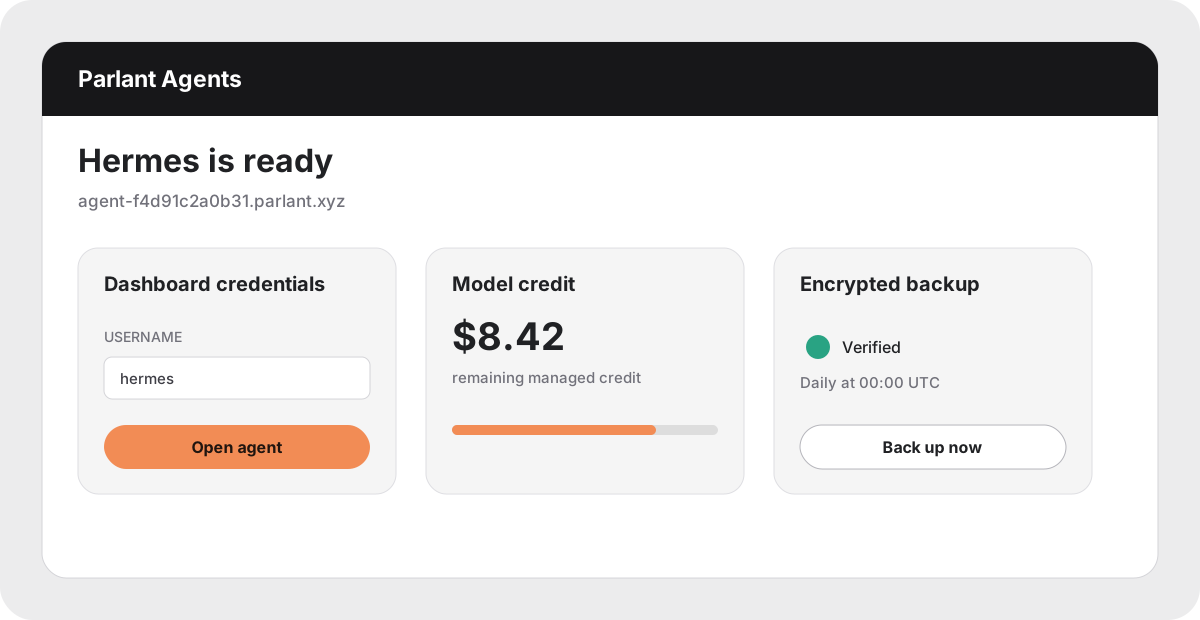
For most people, Telegram is the quickest and most reliable mobile option. It works on iPhone and Android, needs no open inbound port, supports files and voice messages, and can notify you when scheduled or background work finishes. A managed Parlant Agents dashboard can now create and connect a Telegram bot with a short QR flow.
Use a native app only when you need richer session, model, task, skill, memory, or file controls. Native apps and on-phone installs have different backends, so they are not interchangeable.
Examples
| Your goal |
Best starting point |
What to know |
| Use your managed Hermes now |
Open Hermes WebUI in Safari or Chrome |
No extra setup; add the page to your home screen if useful. |
| Chat from either iPhone or Android |
Telegram |
Recommended for most users and easiest to keep online. |
| Get a rich native iOS interface |
Hermex |
Ready out of the box on current managed Parlant Agents images; DIY servers must add hermes-webui. |
| Run a separate Hermes locally on Android |
Hermes Agent - Android |
Easy third-party Play Store app; bring a provider key. |
| Control an existing DIY Hermes from a native Android client |
Hermes Android community client |
Advanced setup; requires the Hermes API server and a private network. |
| Run official open-source Hermes inside Android |
Termux |
Official but Tier 2; fewer features and less reliable background operation. |
If you only want to send prompts and receive results, start with Telegram. It avoids almost all mobile networking and compatibility work.
In-depth guide
Fastest route for a managed agent: use the browser
- Open your Parlant Agents account on the phone.
- Select your agent and tap Hermes WebUI.
- Sign in with the Hermex password shown under Credentials → Hermes WebUI and Hermex.
- Open Chat and send a short test message.
- Optional: in Safari use Share → Add to Home Screen; in Chrome use Menu → Add to Home screen.
This reaches the same agent, files, memory, and model configuration you use on a computer. Nothing runs on the phone beyond the browser.
Recommended on iPhone and Android: Telegram
1. Create and connect the bot with QR setup
- Install Telegram and sign in.
- Open your Hermes dashboard, then open Channels.
- Find Telegram and select Set up with QR.
- Scan the QR code or select Open Telegram. Telegram opens @HermesSetupBot.
- Tap Create Bot. You may edit its display name before confirming.
- Return to the Hermes dashboard. It should show the new bot username and detect your numeric Telegram user ID.
- Check that your ID is in Allowed users, then select Save and restart.
- Wait until Telegram shows Connected, open the new bot, and send
Hello.
The setup service passes the new bot token back to your Hermes instance once. Hermes then stores and uses it from your own server.
2. Learn five useful commands
/help — show available commands;/new — start a clean conversation;/stop — stop current work;/status — show session status;/sethome — send future scheduled results to this chat.
Telegram supports text, photos, documents, voice notes, streaming replies, and separate conversation topics. Start with a direct message; add groups or topics later.
3. Keep access private
Leave the allowlist enabled. Do not enable “allow all users” for an agent with terminal and file access. Treat the bot token as a password; if it leaks, revoke it through BotFather and reconnect the bot.
If QR setup is unavailable, use the manual path: create a bot with @BotFather, find your numeric ID with @userinfobot, then enter both under Channels → Telegram → Configure. The full fallback is in the official Telegram guide.
Native iOS route: Hermex
Hermex is a free, independent iOS client. The agent still runs on a computer or server. Hermex talks to the open-source hermes-webui API over HTTP or HTTPS and adds native sessions, streaming, attachments, model controls, tasks, skills, memory, and workspace browsing.
Important compatibility check: Hermex does not connect to the standard Hermes dashboard. Current managed Parlant Agents images run hermes-webui separately: https://<your-slug>.parlant.xyz is the WebUI and Hermex address, while https://<your-slug>-admin.parlant.xyz is the standard administration dashboard. Older managed instances show the legacy layout until upgraded.
1. Connect a managed Parlant Agents instance
- Open your Parlant Agents account and select Credentials.
- Copy Hermes WebUI URL and Hermex password from the Hermes WebUI and Hermex card.
- Install Hermex from the App Store.
- Paste the URL, tap Test Connection, enter the password, and sign in.
No server install, port forwarding, Tailscale, or extra Cloudflare account is needed. The service stays bound to loopback on your server and the existing outbound-only Cloudflare Tunnel supplies HTTPS. Parlant Agents pins and compatibility-tests hermes-webui with the Hermes version in each image and applies its managed theme automatically.
2. Install the required server on a DIY host
On a macOS, Linux, or Windows/WSL2 machine that already runs Hermes:
git clone https://github.com/nesquena/hermes-webui.git
cd hermes-webui
python3 bootstrap.py
The bootstrap checks for Hermes, creates its environment, and starts the web UI on 127.0.0.1:8787. Before making it reachable from another device, enable authentication in its Settings panel and set a strong, unique password. Confirm it works locally:
curl http://127.0.0.1:8787/health
3. Make a DIY installation reachable safely
Tailscale is the safer default. Install Tailscale on the server and iPhone, sign both into the same tailnet, then start hermes-webui with a password and a network-visible bind:
HERMES_WEBUI_HOST=0.0.0.0 HERMES_WEBUI_PASSWORD='use-a-long-unique-password' ./start.sh
tailscale ip -4
Use http://100.x.y.z:8787 in Hermex. Tailscale encrypts the connection. Binding to 0.0.0.0 also exposes the service to the local network, so keep the password enabled.
A stable HTTPS reverse proxy or named Cloudflare Tunnel also works. A quick tunnel is useful for testing:
cloudflared tunnel --url http://localhost:8787
Quick-tunnel URLs change after a restart. Any public hostname must use a strong server password. Hermex does not currently handle a separate Cloudflare Access login layer.
4. Connect the app
- Follow the Hermex setup guide and install Hermex from the App Store.
- Enter only the server origin, such as
https://hermes.example.com or http://100.x.y.z:8787.
- Tap Test Connection.
- Enter the
hermes-webui password and sign in.
- Open an existing session or create a small test conversation.
If connection testing fails, check the server process, /health, Tailscale or tunnel status, then the URL and password—in that order. Hermex requires iOS 18 or later. Because its server API is still evolving, update Hermex and hermes-webui together when features stop working.
Android option 1: Play Store app for a separate on-phone Hermes
Hermes Agent - Android by Hen Works packages an agent, terminal, Python, git, sessions, memory, and provider setup into one Android app. Choose this when you want a new Hermes that runs on the phone itself.
- Install the app from Google Play.
- Create a separate provider API key with a low spend limit.
- Follow the in-app setup, select a provider and model, then run its self-check.
- Start with a harmless prompt before granting broader file or terminal access.
This app does not attach to your existing managed Hermes. It creates another installation with separate sessions, memory, and files. It is a third-party app with ads and an optional purchase, not an official Nous Research release. Review its Play Store privacy information and avoid reusing an unrestricted production API key.
Android option 2: community client for an existing DIY server
The Hermes Android community client can browse sessions and stream chat from an existing Hermes API server. Optional dashboard access adds memory, cron, skills, and settings. This is useful, but more work than Telegram.
- On the Hermes host, enable the authenticated API server with a strong
API_SERVER_KEY. Keep its default port 8642 private.
- Put the server and Android phone on the same Tailscale network. Do not directly port-forward ports
8642 or 9119 to the public internet.
- Download the current
app-arm64-v8a-release.apk from GitHub Releases. Android 8 or later is required.
- Allow APK installation for the browser or file manager only long enough to install it, then turn that permission off again.
- In the app, add the server's Tailscale IP or MagicDNS name, port
8642, and the API key.
- If you need dashboard panels, add the separately protected dashboard address and credentials.
This client is independent and sideloaded. Check the release page, repository activity, and requested permissions before every update. Managed Parlant Agents instances do not expose the API port by default, so this path needs server administration and is not the quick managed-service route.
Android option 3: official Hermes in Termux
Termux runs the real Hermes CLI inside Android. Use this when open-source code and local terminal control matter more than polish.
- Install a current Termux build from termux.dev rather than an old, unsupported store build.
- In Termux, run the official installer:
curl -fsSL https://hermes-agent.nousresearch.com/install.sh | bash
- Verify and configure it:
hermes version
hermes doctor
hermes model
hermes
The installer selects Android-compatible dependency groups automatically. The tested path includes the CLI, cron, background terminals, Telegram gateway, MCP, memory, and ACP. Docker isolation, local Whisper voice transcription, and automatic browser bootstrap are not part of the tested path. Android may suspend Termux in the background, so do not rely on it as an always-on gateway.
Termux is an official Tier 2 platform: real users run it, but releases can break Android-specific dependencies. Follow the complete Termux guide when installation or updates fail.
Which route should you choose?
- Managed Parlant Agents customer: browser first, Telegram next.
- Any user who wants reliable mobile chat and notifications: Telegram.
- iPhone user who wants a full native control surface and can operate an extra server: Hermex.
- Android user who wants a separate local agent with easy installation: Play Store app, with a limited provider key.
- Android user who wants a native client for an existing DIY server: community client over Tailscale.
- Android power user who wants official Hermes running on-device: Termux.
How these options were verified
Research checked current primary documentation, release activity, and real-user reports on 15 July 2026. Hermex had 42 US App Store ratings and reviews confirming daily use and straightforward setup; reviews also reported slow long conversations and confusion about the required hermes-webui sidecar. The Android Play Store app showed 10,000+ installs, a 4.4 rating from 2,016 ratings, and reviews confirming successful setup. The community Android client has active releases and a user report of a working reverse-proxy setup. Termux is documented and tested by the Hermes project, with active Android user reports that also confirm its Tier 2 limitations.